Help center

How The Number Plug works

A quick tour of each portal plus answers to the questions we hear most from students, families, teachers, and administrators.

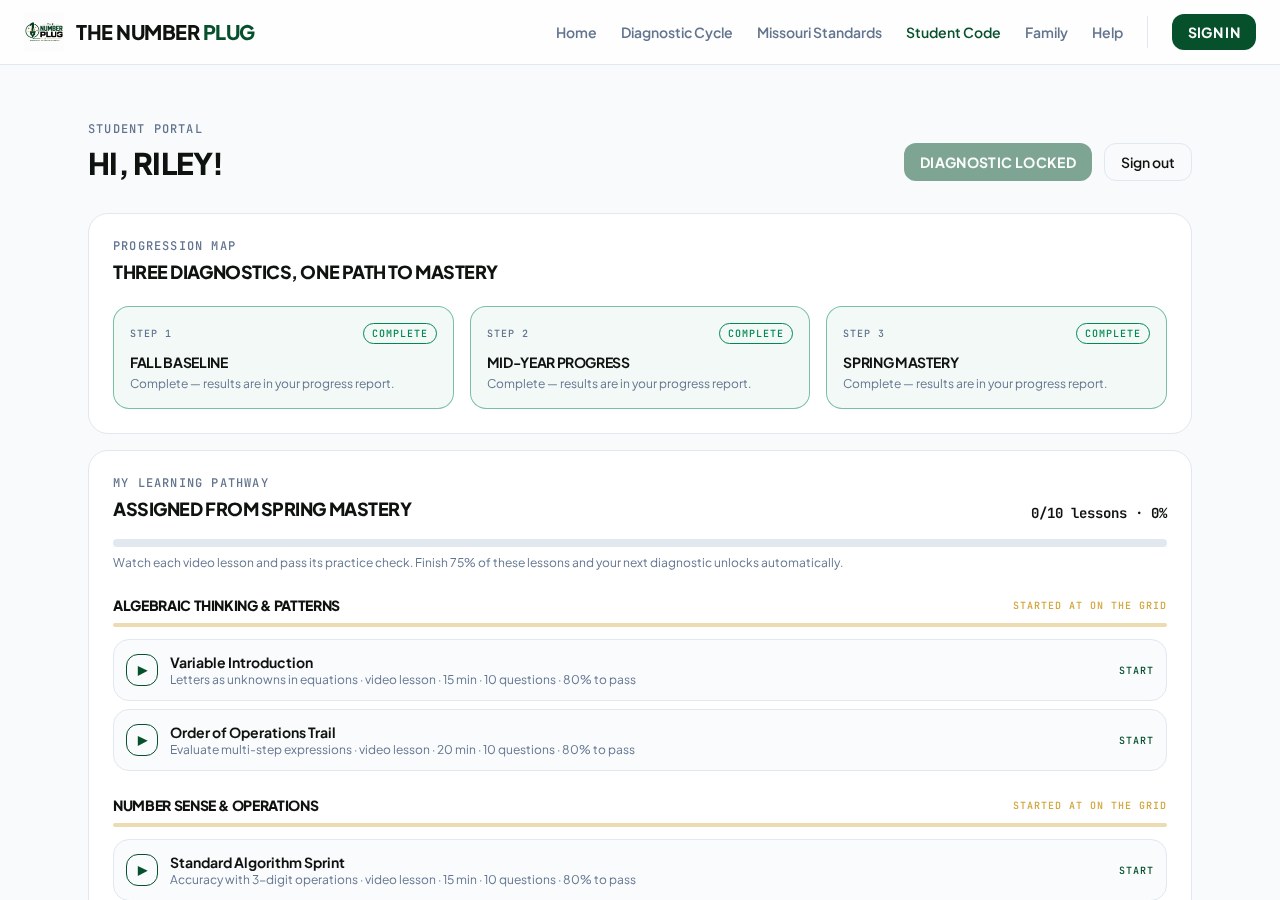
Student portal screenshot

Student portal

Students sign in with their code, take the three diagnostic cycles, and watch their scale score and domain growth update in real time. Recommended lessons and The Arcade unlock from their results.

  1. 01Go to Student Code and enter the code from the teacher.
  2. 02Start the diagnostic when a cycle shows as available.
  3. 03Complete assigned lessons — each has a 10-question check.
  4. 04Score 80% or higher to unlock the next lesson and the domain game.
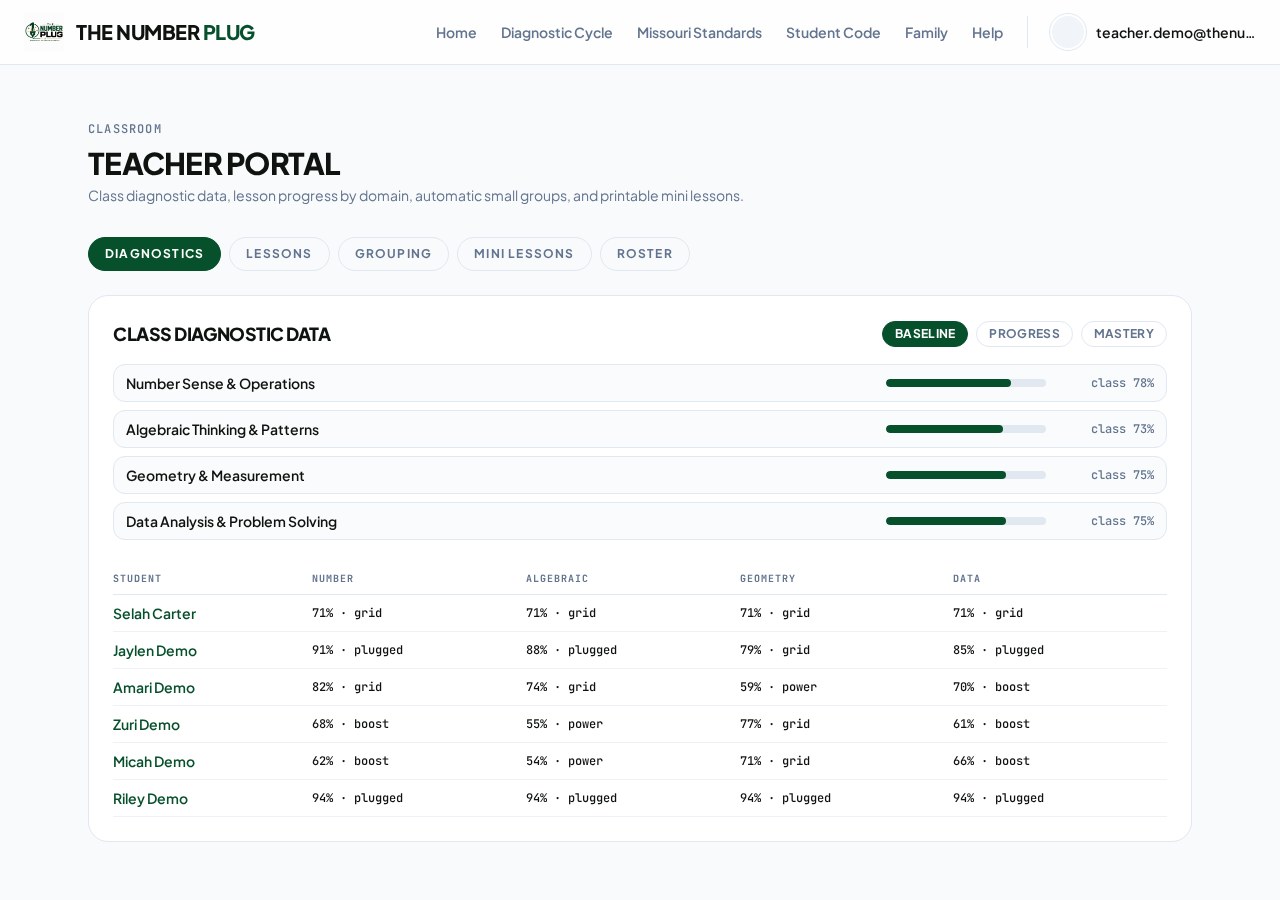
Teacher portal screenshot

Teacher portal

Teachers see class data by diagnostic and by lesson, auto-grouped by domain need, plus printable mini-lessons that match what students are working on.

  1. 01Sign in with the invitation link sent to your school email.
  2. 02Add students to your roster — codes generate automatically.
  3. 03Use Grouping to form small groups by domain gap.
  4. 04Click a student's name to open their account and results.
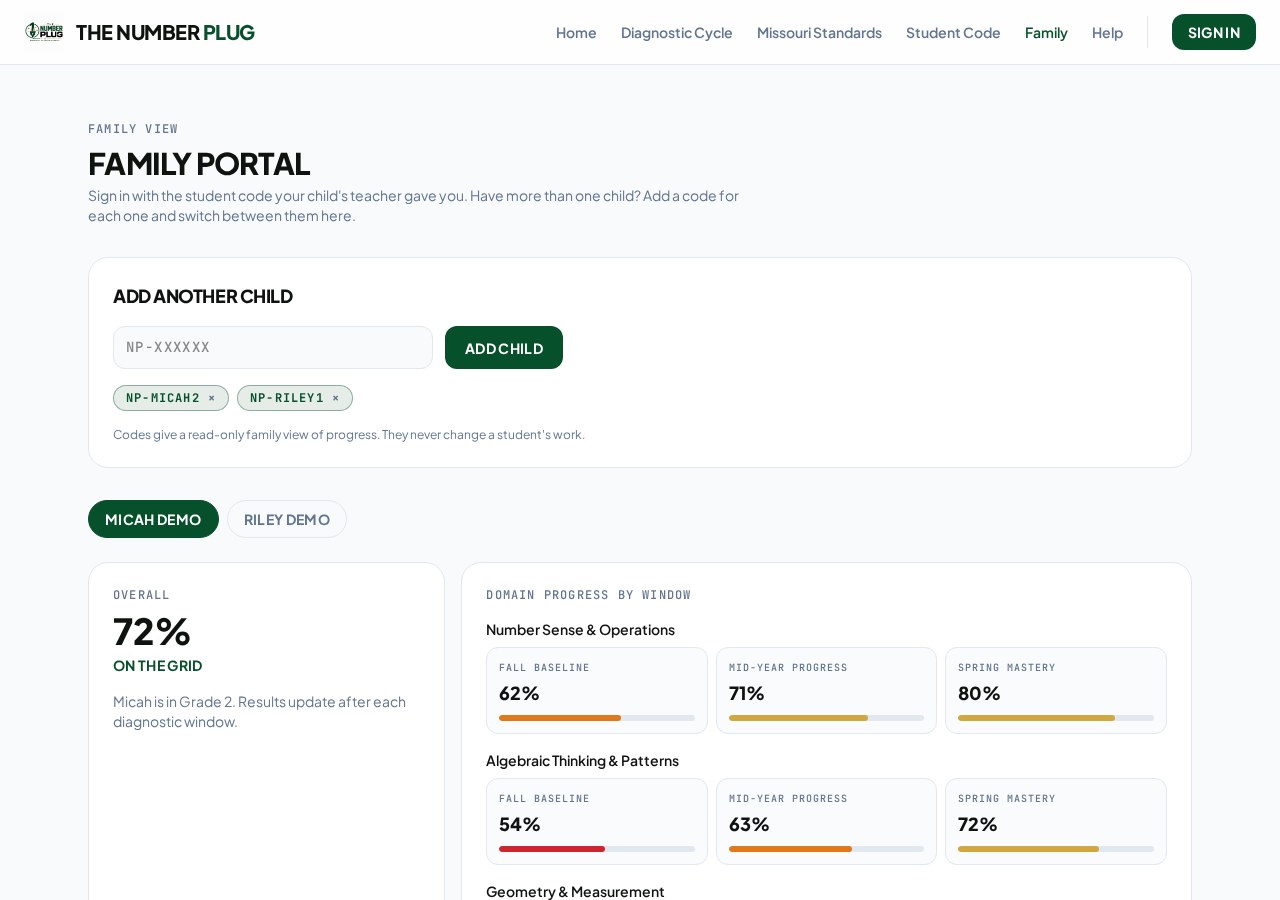
Family portal screenshot

Family portal

Families follow along with every child using the same student codes. Add multiple codes to see all children in one place.

  1. 01Open the Family page.
  2. 02Enter your child's student code.
  3. 03Add more codes for additional children.
  4. 04Review lesson progress, placement levels, and growth.
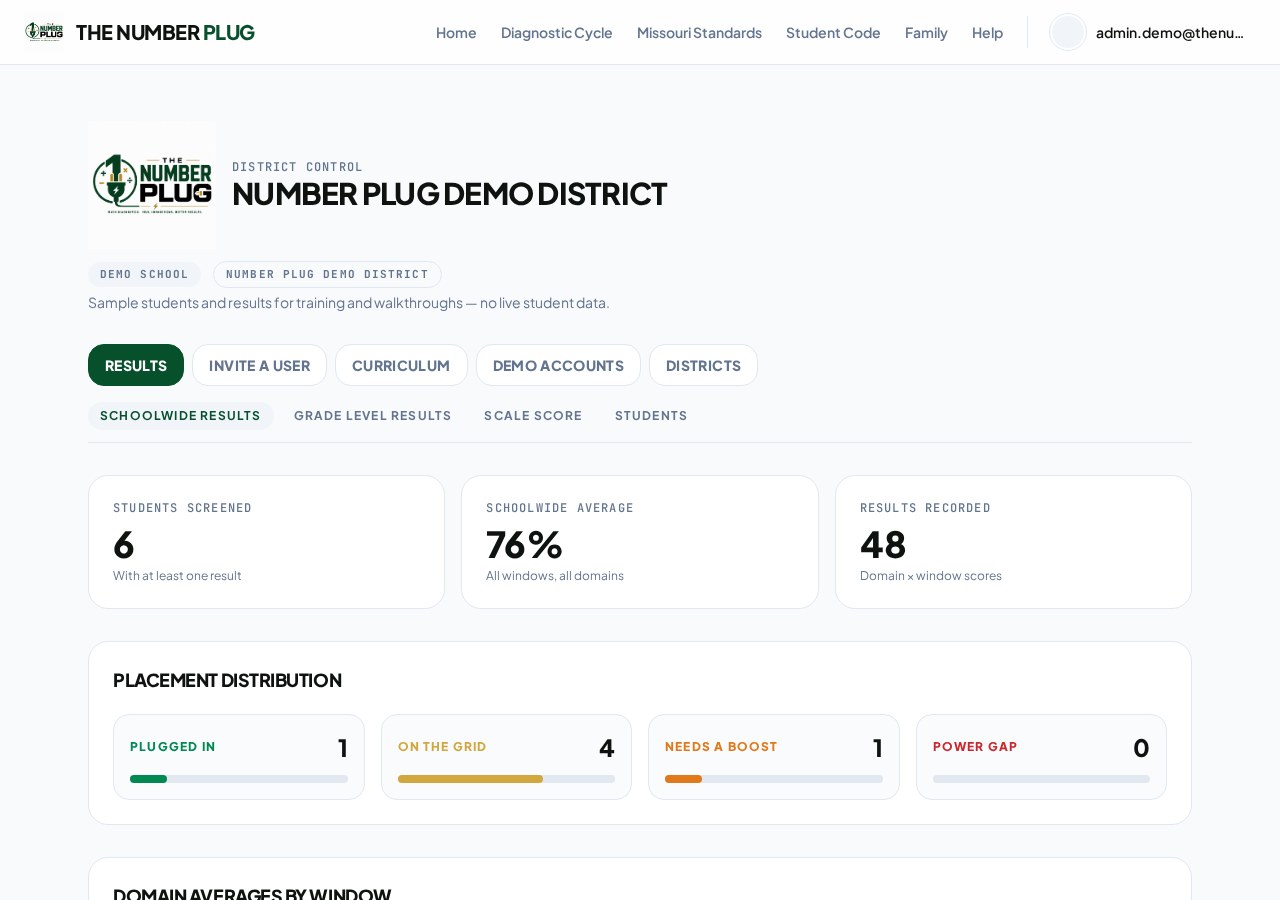
Admin portal screenshot

Admin portal

Administrators see schoolwide and grade-level results, scale scores, and the full student roster, plus tools to invite staff, manage classes, and review the curriculum.

  1. 01Sign in with your administrator invitation link.
  2. 02Use Results for schoolwide, grade-level, and scale score data.
  3. 03Invite a user to add staff, classes, and accounts.
  4. 04Open Students to view any student's diagnostic results.

Frequently asked questions

+Where do students get their login code?

Codes are generated automatically when a teacher adds a student to a class roster. Teachers can view and share them from the Roster tab in the teacher portal.

+How many times do students take the diagnostic?

Three times per school year. The first sets the baseline and the individualized learning pathway; the next two unlock automatically as students complete their assigned plan.

+What are the four domains?

Number Sense & Operations, Algebraic Reasoning, Geometry & Measurement, and Data & Statistics. Every item and scale score is criterion-referenced to the Missouri Learning Standards for grades K–5.

+What do the placement levels mean?

Placement levels describe where a student is relative to grade-level standards, from a power gap through plugged in. Each level has an associated scale score range shown on the home page.

+Why did a lesson or assessment lock?

The pace guard locks work when answers come in unrealistically fast. A teacher conferences with the student and unlocks it from the teacher portal.

+How do students unlock the Arcade games?

Finishing a lesson on their track with 80% or better unlocks that domain's head-to-head game against Coach Trey.

+Do parents need their own password?

No. Families sign in using their children's student codes — no separate account is required.

+How do staff accounts get created?

An administrator invites staff by email. The invitation link lets them set their own password. Admins can also send password resets from the admin portal.

+Can a district add its own logo?

Yes. District admins upload a logo under the Districts section of the admin portal, and it appears in that district's portal header.

+Is student data kept separate between schools?

Yes. Data is scoped by district and school, so staff only see the students in their own building or district.
Still need help?

Reach out to your building administrator for account access, or your child's teacher for student codes and lesson assignments.